
Community Session Hosts Handbook#
About This Handbook#
The Community Session Host Handbook is designed to support members of The Carpentries community who are serving as Community Session Hosts. The Carpentries Community Engagement Team maintains it. If you believe anything needs to be added or updated here, or if you would like to provide feedback on the content, please email the Community Engagement Team or open an issue on the source repository of this handbook. If you are unfamiliar with any of the terms used in this handbook, please refer to our Glossary of terms.
Introduction#
Hosting a community session is a great way to meet more people in The Carpentries community, get to know the organisation better, learn from others’ experiences, and share your knowledge and expertise with an even greater number of people.
Community sessions are also an integral part of our Instructor Training Certification Process, also known as ‘Checkout’. As a Community Session Host, you get to welcome new Instructors into our global community and introduce them to community sessions as an ongoing resource for support and advice as they develop their teaching practices.
Topics covered during community sessions range from teaching workshops and developing curricula to building local communities and assessing the impact of our workshops globally. There are four types:
Community Sessions: Our community sessions are sessions on any topic relevant to the community that can be in any format. The Core Team also hosts various Welcome Sessions each month for new community members to meet Core Team members and learn how to engage with the organisation.
Regional Community Sessions: Our local and regional subcommunities host these sessions. To view a list of local and regional communities and their activities, view our Subcommunity Registry.
Skill-up Sessions: A skill-up session offers a professional development opportunity for the community where relevant skills are taught.
Collaboration Sessions: Collaboration sessions dedicate time and space to co-develop a community resource or to co-work on any community activity.
Note. Any of these four types of Community Sessions can be attended to meet the requirement as part of Instructor Training Certification.
Roles and Responsibilities#
A community member can serve as a Community Session Host. Specific responsibilities include:
Sign up to receive relevant communications for serving in this role. Instructions for signing up can be found in the Communication and Collaboration Spaces section of this handbook
During a quarterly scheduling period, schedule one or more community sessions on the date(s)/time(s) you want to host a session.
Facilitate community sessions that you have signed up to host.
Check-in attendees to each session you host in Pretix. The Core Team uses this information to record participation in AMY, The Carpentries internal database. This is the primary way future Instructors get credit for completing this checkout step.
Note: From 1 January 2027, all community sessions listed on the community calendar will be required to have a sign-up page in Pretix. View our quarterly sign-up workflow below.
Onboarding#
Please note that, from 1 January 2026, the onboarding process for Community Session Hosts will no longer be in use. Community sessions are open to anyone in the community to host, provided that sessions adhere to The Carpentries Code of Conduct. No formal onboarding is required.
Offboarding#
If you are no longer interested in hosting community sessions, please send an email to the Community Engagement Team. They will remove you from the #discussion-host Slack channel and unsubscribe you from the Session Host mailing list.
Communication and Collaboration Spaces#
This section lists communication channels and collaboration spaces that support Community Session Hosts. Participants in these spaces are expected to follow The Carpentries Code of Conduct. A description of the tools listed can be found in the community glossary.
Community Calendar#
Once you have scheduled a session, a calendar invite will be sent to the email address you used when signing up. All community sessions will also be listed on our Community Calendar.
Etherpad#
A list of Etherpads relevant to serving as a Community Session Host includes:
Community Session Etherpad: Instead of using the Etherpad as we have in the past (to list of upcoming Community Sessions), we use Pretix for Community Sessions sign ups starting 1 January 2026 for participant registrations.
Pad-of-pads: A list of The Carpentries’ most commonly used Etherpads and other resources.
Messaging and Communication#
Slack is the software platform that The Carpentries uses to support synchronous and asynchronous communication. Channels support communications, collaboration and co-creation among a subset of community members, depending on the channel’s purpose. You can join The Carpentries Slack workspace to follow conversations on the channel relevant to this role:
#discussion-hosts: channel for Community Session Hosts and those interested in hosting community sessions
If Slack is new to you, our Slack Guide will help you set up your profile and give you an overview of how we use the platform day to day.
Mailing List#
You can access The Carpentries mailing lists from Topicbox. The Community Session Host mailing list is used for announcements relevant to Community Session Hosts. To join one or more Carpentries mailing lists, you will need to create a login. Once you have done this, you can scroll through the list of groups and click “Join the Conversation” (for open mailing) or “Request to Join” (for those mailing lists requiring administrator approval). If you are new to Topicbox, please check out our Topicbox Guide.
Step-by-Step Guides#
This section includes step-by-step guides to support you in your role as a Community Session Host.
Each quarter, communications will be shared from the Community Engagement Team via Slack and TopicBox with instructions to sign up to host a community session. Visit the Communication Resources section of this handbook for instructions on joining one or both of these communication channels.
Community Session Hosts will sign up using Calendly during the signup period. Calendly lets you select dates and times in your time zone for the sessions you plan to host. Dates and times already selected will not display.
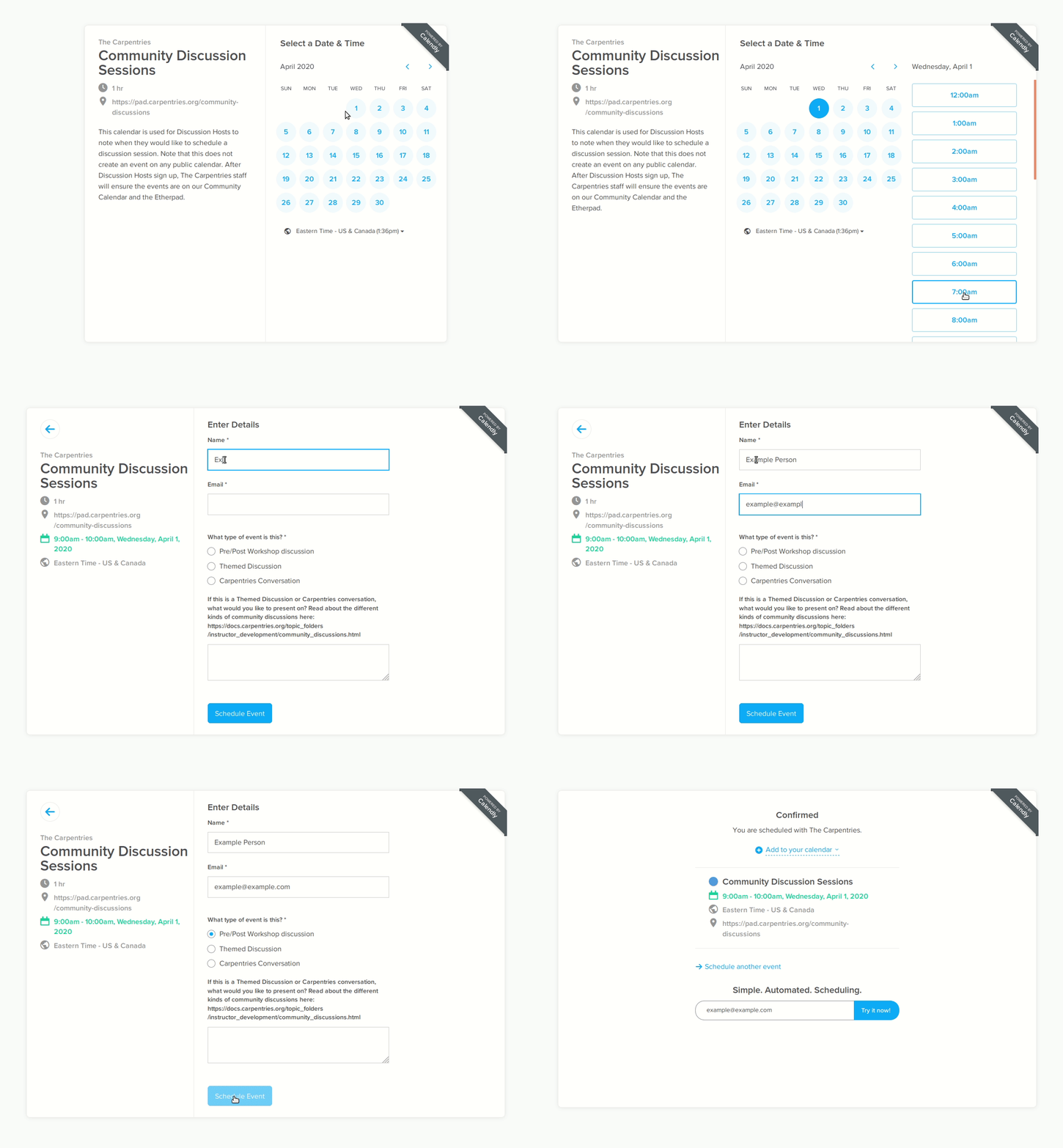
Once hosts have scheduled themselves for a Community Session via Calendly, a workflow will add each event to Pretix and the Community Calendar.
In the rare instance that you need to schedule a session outside of the quarterly scheduling period, the Community Session Host should reach out to the Community Engagement Team. The session is not confirmed until a Community Engagement Team member contacts the host.
Signing Up to Host a Local or Regional Community Session#
Subcommunity Leaders are responsible for scheduling and hosting local and regional community sessions. These sessions are currently listed on the Community Calendar. If a Subcommunity Leader is interested in listing a Regional Community Session there and having it added to The Carpentries Community Calendar, they should email community@carpentries.org. If they instead want to have the session added to Pretix where individuals can sign up to attend, they can add the events using Calendly during the signup period as described in the Signing Up to Host a Community Session section of this handbook. This will automatically add the event to the Community Calendar and Pretix. To learn more about becoming a Subcommunity Leader, please visit the FAQs section of this handbook.
Checklist for Hosting a Community Session#
Using Pretix for Community Sessions#
Starting in Q1 2026, The Carpentries will use Pretix for participants to sign up for Community Sessions. As part of The Carpentries commitment to a consolidated event-management system, we are moving registration into a secure platform to protect participant privacy, improve workflows such as time zone display and automated notifications, and strengthen our ability to track key data, including registration and no-show rates, enabling us to make more informed decisions about future work. Previously, Community Session Hosts completed a host form listing participants (and other information during the Community Session). From 1 January 2026, this will change. Community hosts will need to check-in participants via Pretix. Hosts will receive an email with instructions on setting up their Pretix account to check participants in. We recommend that Community Session Hosts log in at least 1-2 weeks before their session to troubleshoot if needed. If you have not received this email one week before your Community Session, please email community@carpentries.org
The public link to sign up for community sessions is https://pretix.carpentries.org/community-events/community-sessions
Before the Session#
Changes to sign up process#
Instead of using the Etherpad as we have been, we will be using Pretix for Community Sessions from Q1 2026 for participant registrations (https://pretix.carpentries.org/community-events/). Registered participants will get an email immediately after registering and a reminder two days before the session. Community Session Hosts will get Calendly notifications (this will not change).
The Etherpad will not list each event. Instead, it will just show standard/general information that applies to every session. Please make a copy and complete the information for your Community Session.
[Please copy between the lines]#
[ENTER THE COMMUNITY SESSION TITLE AND DESCRIPTION] [Date of the Community Session]
Participants to list their names below (ensure you have signed up on Pretix for this event, if not, you can still do it now - https://pretix.carpentries.org/community-events/community-sessions/):#
Notes and resources:#
We would appreciate hearing your thoughts about today’s Community Session. If you would like to share any feedback, please feel free to complete our short Community Session Feedback Form (https://forms.gle/yyPqEjRNJM17BWj27). Your input helps us improve and better support our community.
Please review the calendar and sign up here: https://pretix.carpentries.org/community-events/community-sessions/
Agenda Template for Community Session Host (This will be updated before each session by the Community Session Host).
Community Session Host to review registration#
The Community Session Host can review registration for their session at any time. View registration here (must be signed in to Pretix): https://pretix.carpentries.org/control/event/community-events/community-sessions/checkinlists/
Cancelling the session#
You may also choose to cancel a discussion if no one has signed up two days before the session. Please contact community@carpentries.org to inform them of the cancellation. They will update the community calendar and remove the session from Pretix.
If participants have signed up but Community Sessions hosts need to cancel, please contact community@carpentries.org.
Pre-Session Setup and Responsibilities#
Sign on at least 5 minutes before the beginning of the session.
It is recommended to create a waiting room. This enables the host to explicitly let people in, rather than allowing anyone to enter.
Gain host access.
Two days before the event, the host will receive an automated email from Calendly that includes the host key.
Enable closed captioning to improve accessibility of the event.
Zoom provides automatic captioning of calls. The accuracy of captioning may be limited by factors such as sound quality, accents, dialects, and jargon.
Confirm that the fellow host is present (if there is one) and who will be leading/taking notes.
During the Session#
Use or adapt the Script for Starting a Community Session.
If relevant, follow the sample agendas provided at the bottom of the Community Session Etherpad
and also available in the resources section of this handbook.We recommend following the main points of the agenda, but you can let the session go where people want. Not all the questions need to be answered by everyone.
The host should not feel like they have to answer all the questions. They should draw on the other session participants to answer each other’s questions.
If someone is attending as part of their training checkout, prompt them to ask a question.
Try to leave enough time in the end for Q&A and any announcements that need to be made.
Take notes or identify someone to take notes.
For pre-and post-workshop sessions: If there are more than 5 workshops represented by attendees, we recommend splitting participants into two groups using breakout rooms to make sure everyone has enough time to share. When dividing attendees into two groups, try to balance the number of people who are de-briefing, who are there for pre-workshop help, and who are instructor trainees. Learn more about how to set up and use breakout rooms.
During/After the Session#
If used, archive the Etherpad by selecting “Save Revision” (Note: displays as a star in the top right menu).
Clear the information from the session (date/time, attendees, notes) from the Etherpad.
(Optional) Write a blog post about interesting points that came up in the session.
The Community Session Host must record attendance by checking people in on Pretix. You can ask participants to list their attendance on the etherpad during the community session, then transfer this to Pretix. Please tell participants that if they have not signed up via Pretix yet, they should do so before the end of the session. Community Session Hosts will not be able to check them in if they do not do so. We recommend that you complete the check-in during a natural pause in the programme, such as a breakout discussion or a short networking break, to make sure it flows smoothly into the event. The Community Session Host will not need to complete a survey. Participants will still need to complete a survey.
How to check-in participants to Pretix#
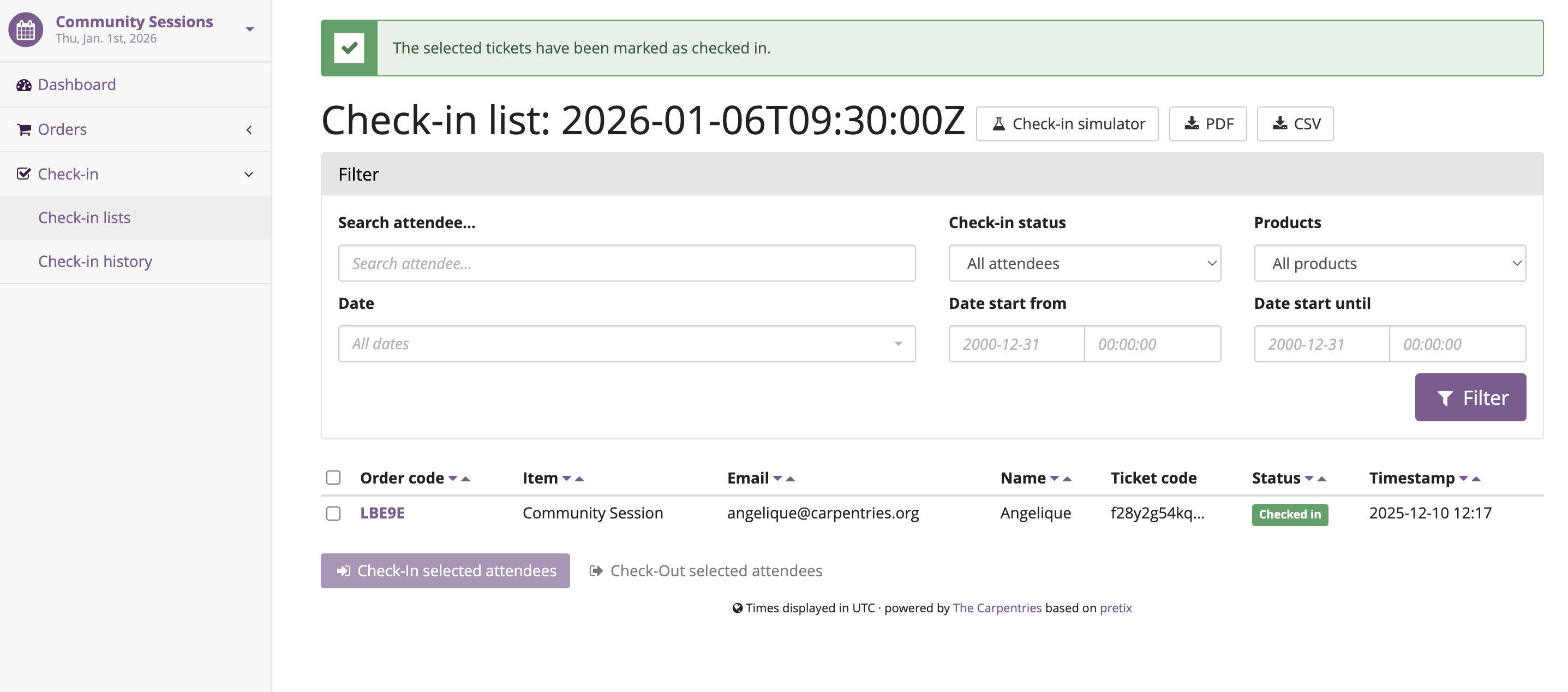
Open the following link: https://pretix.carpentries.org/control/event/community-events/community-sessions/checkinlists/. Find the session you host and click on the name (i.e 2026-01-06T09:30:00Z)
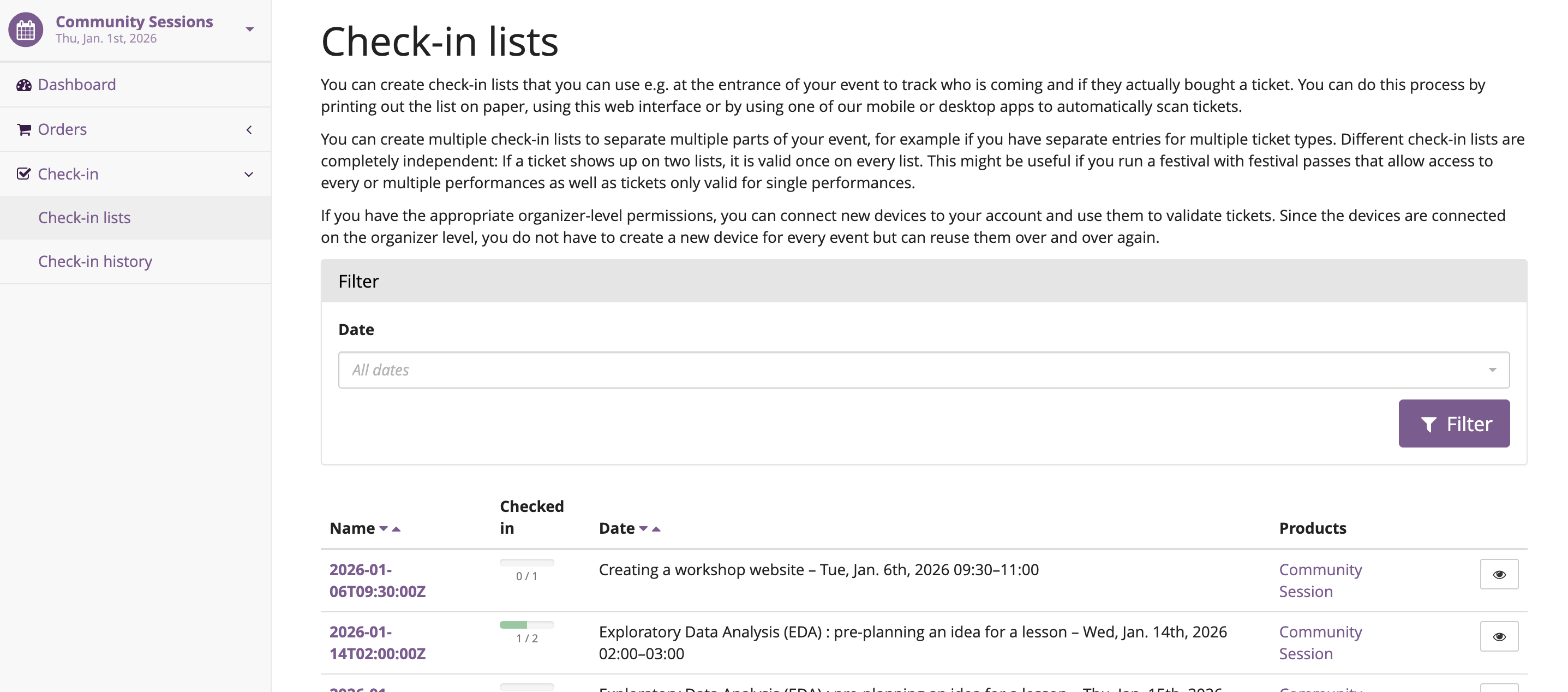
You should now be able to see a list of participants who registered for your event.
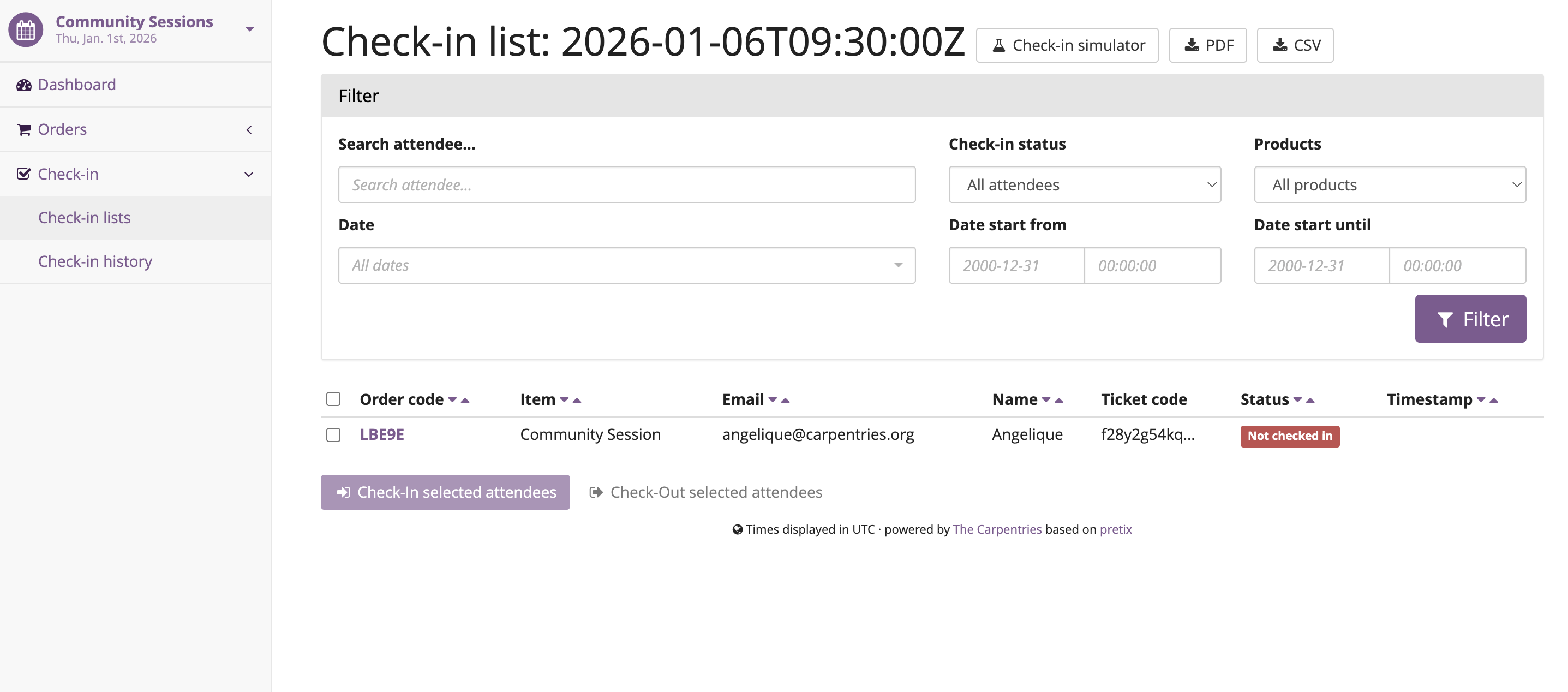
Select all the participants who attended the community session by checking the box to the left of the order code. Please note there might be multiple pages of registered participants.
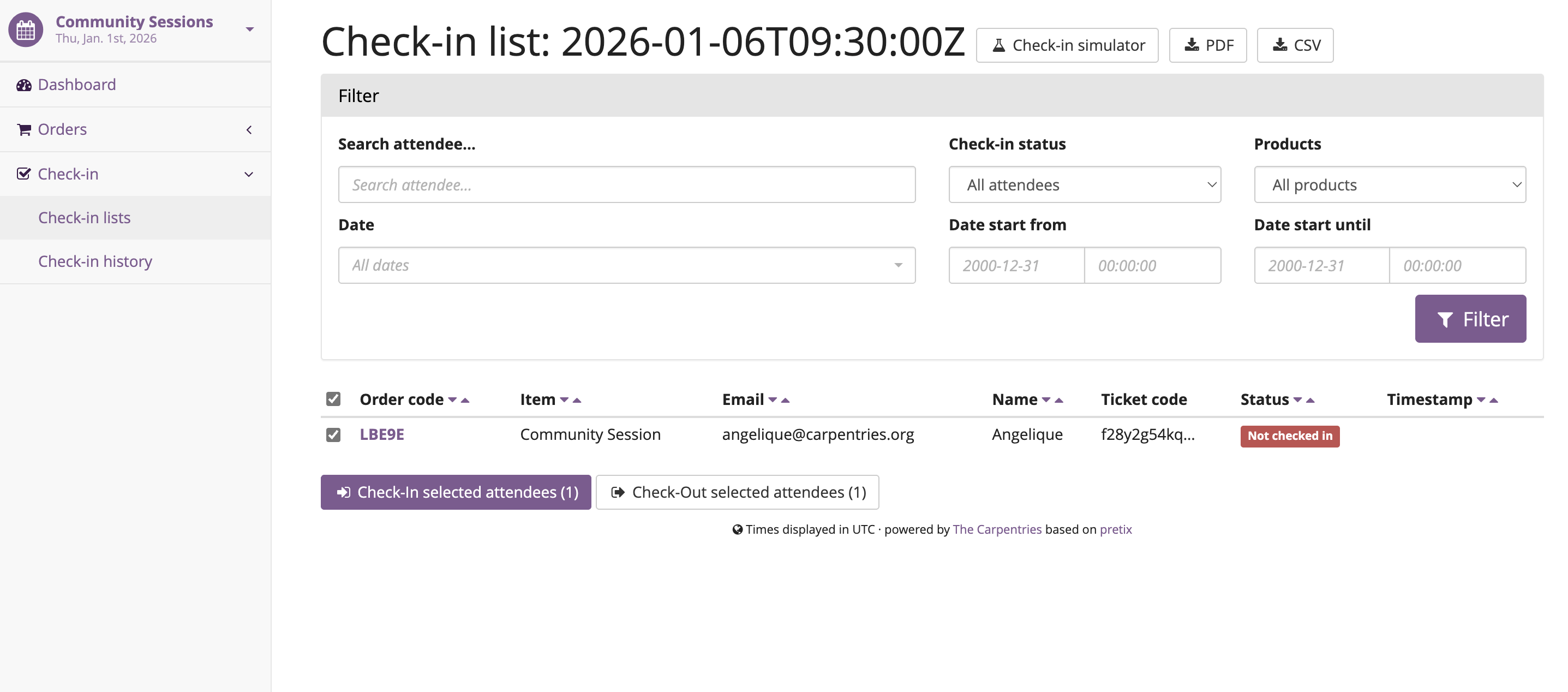
Once you have selected all the participants, you can click on “check-in selected participants”. You will now notice the Status has changed from “Not checked in” to “Checked in”. Checked-in participants automatically get an email via Pretix reminding them to complete the survey if they have not already.
Resources#
Script for Starting a Community Session#
Community Session Hosts can use or adapt this script at the start of their community session.
Welcome everyone! My name is [insert name], and I am [role and affiliation]. In just a minute, we are going to do a round of introductions, but I want to cover a few logistics before we get started.
We will be using the Etherpad for collaborative note-taking. Everyone is welcome to take notes during the session today, but [name] will also be serving as a designated note-taker.
Host should share the link in chat: Community Session Etherpad
I have enabled automated closed captioning that you can display on your screen using the captioning feature.
If you have a question, please use the reaction to “raise hand” in Zoom.
To make clear what is expected, everyone participating in The Carpentries activities are required to abide by our Code of Conduct.
Host should share the link in the chat: Code of Conduct
Any form of behaviour to exclude, intimidate, or cause discomfort is a violation of the Code of Conduct. To foster a positive and professional learning environment, we encourage you to:
Use welcoming and inclusive language
Be respectful of different viewpoints and experiences
Gracefully accept constructive criticism
Focus on what is best for the community
Show courtesy and respect towards other community members
If you believe someone is violating the Code of Conduct, we ask that you report it to The Carpentries Code of Conduct Committee by completing this form.
Host should share the link in chat: The Carpentries Code of Conduct Incident Report Form
If you are attending this session as part of Instructor Training Checkout, please make sure you have registered on Pretix.
Host should share the link in chat: Community Sessions on Pretix
Does anyone have any questions before we get started?
FAQ#
What if I do not know the answer to someone’s questions and no one in the room does either?
It is fine if you do not know all the answers. This is a great time to demonstrate how someone in the community can get their questions answered by posting the question to Slack or one of The Carpentries mailing list. Questions can always be sent to team@carpentries.org and a member of the Core Team will respond.
What if the host/co-host has a poor internet connection and is unable to communicate? What if Zoom fails to work (e.g. your internet connection fails)?
It is very important to test your internet connection beforehand and to make sure that you as a host can communicate. The host is the session leader and should have a stable connection. If, however, when you test your connection, you find that you do not have a good connection, contact the community via our communication channels to find out if someone could take over as host for the session.
What if no one shows up?
If no one joins at the start of the session, send a reminder email to the participants who signed up and wait a few minutes. If no one has joined 10 minutes after the scheduled start time, please reach out to community@carpentries.org and end the call.
What if someone talks too much?
Limit the amount of time that you give participants to ask and answer questions. You could ask for feedback from someone who has not shared yet to engage everyone in the conversation.
What if there is no co-host/note taker and the session is fully booked?
As a host, you are more than welcome to take a few notes, however, there is no need to take down every single thing that is shared. Note down important points, making sure to add links to useful information. Encourage participants to contribute to the notes on the Community Session Etherpad.
What if someone joins in late?
Depending on how late the person joins, you could welcome them and ask them to introduce themselves to the rest of the participants. If you have time, you can ask the individual to stay on the call for a few minutes after it is finished to summarise what they missed and answer any questions they may have.
What if someone does not have a headset and can’t control their background noise?
As a host, you will have the privilege to mute other participants, or you could ask the person directly to mute their microphone. Learn more about how to use host features in Zoom.
What if I forget to check-in participants?
Do not worry, you have up to 24 hours after the session to check in participants in Pretix. You will also receive a reminder email shortly after the session with step-by-step instructions on how to complete the check-in process.
What if someone breaks the Code of Conduct? What if someone had a report of misconduct?
In the case that this happens, The Carpentries has a set of guidelines that can be followed.
What if one person doesn’t contribute to the conversation?
Try to encourage participation. This can be done by asking participants a question or asking a person for their thoughts on a specific topic of conversation. There is also a point in the agenda that allows you as the host to talk to participants and ask them each for a specific question that they need answering.
What if someone asks to join my Community Session to complete their Instructor checkout session and it is already full?
Participants can add themselves to the waiting list in Pretix. If a seat becomes available (for example, if someone cancels), the next person on the waiting list will automatically receive an email inviting them to register for the session.
What if someone is loud/obnoxious and/or talks down to other people?
It is very important to remind everyone of the Code of Conduct at the beginning of each session as The Carpentries adheres to it during all community events, including community sessions. Such behaviour would be a clear violation and you could ask the person to leave.
What if I am having trouble understanding one of the attendees?
You could ask the participant to type their questions in the Community Session Etherpad for you to read and respond to them, which will also make note-taking much easier. Consider asking them to speak up as well if the microphone is too soft.
What if I need to create a separate Etherpad for note-taking?
Notes from all sessions can be taken on the Community Session Etherpad and will be archived following each session. However, if you think another Etherpad is needed for notetaking during your session, a new Etherpad can be created by appending a descriptive name to the URL https://pad.carpentries.org/, such as https://pad.carpentries.org/themed-discussion-15-09-2022.
How can I become a Subcommunity Leader?
A Subcommunity Leader is a member of the community who serves as the leader of a subcommunity within The Carpentries. This role is being formalised through the Community Engagement Program. If you are interested in learning more, please email community@carpentries.org.
What if participants join using different names or email addresses than what appears in Pretix?
If you are confident that a participant matches a registration (for example, similar names), you may check them in. If you are unsure, you can ask the participant directly or follow up after the session.
Do participants need to be registered in Pretix to receive credit?
Yes. While Zoom links may be publicly accessible to allow walk-ins, participants must register via Pretix to receive credit and for attendance to be counted in reporting.
How should I manage check-ins if I only have one screen?
Several options can help:
Ask participants to type their name into the Etherpad when they join, then complete check-ins after the session.
Use breaks or icebreakers as an opportunity to check people in.
If possible, have a co-host share slides while you manage Pretix.
Some hosts find it helpful to log into Pretix on their phone while hosting from their computer.
Can I sort or search the check-in list in Pretix?
Yes. In Pretix, column headers (such as name or email) include arrows that allow you to sort the list alphabetically. You can access and review check-ins even after the event has ended.
What if a participant says they are on a waiting list?
The waiting list is automatically activated once registrations exceed the number of seats set during event setup. When a seat becomes available, the first person on the waiting list is notified and given the opportunity to register. If the host is willing to exceed the original seat limit, they may email community@carpentries.org with the names of individuals who attended but remain on the waiting list. We will then assist with manually checking them in for the event.
What if an attendee did not register before the session started?
The Community Session Host should ask any attendees who have not yet registered on Pretix to please do so before the end of the session. Once they have completed their registration, the Host can check them in on Pretix. This ensures that attendance is recorded accurately while still allowing participants to take part in the session.